JDVM - One VM to Code Them All

Less configuration, more creation
Warning
🛠️ This repository is under active development.
Only Early Access (EA) builds are provided at this stage.
The JDVM is a powerful development environment designed specifically for Java Developers working on Windows or Linux. This Virtual Machine is based on Ubuntu, providing a familiar Linux environment that integrates seamlessly with Windows through Docker Desktop or Linux through Docker Engine.
The main advantage of the JDVM is its time-saving nature. Developers no longer need to spend valuable time manually setting up their development environment or installing the necessary tools. Everything you need - such as OpenJDK (via Eclipse Temurin), IDE, build tools, Version Control System, Docker, Kubernetes and so on - is pre-configured and ready to go right out of the box.
With the JDVM, developers can focus on writing code and delivering high-quality software, instead of worrying about installation issues or environment configuration. It's an ideal solution for anyone looking for a streamlined, efficient, and hassle-free Java development setup.
It requires 2 dependencies on Windows:
- WSL version 2 (Windows Subsystem for Linux) - lets you
install a Linux distribution and use Linux applications, utilities, and Bash command-line tools directly on Windows,
unmodified, without the overhead of a traditional virtual machine or dualboot setup. Check quickly if you have it with
command:
wsl --versionin CMD/PowerShell - Docker Desktop - lets you build, share, and run containerized applications. It provides a straightforward GUI (Graphical User Interface) that lets you manage your containers, applications, and images directly from your machine
It requires only 1 dependency on Linux:
- Docker Engine - lets you build, share, and run containerized applications. It does not provide any GUI, management is performed via CLI
JDVM image can be pulled from DockerHub: hub.docker.com/r/jdheim/jdvm
Container from the image can be started with a batch script (more in the next section):
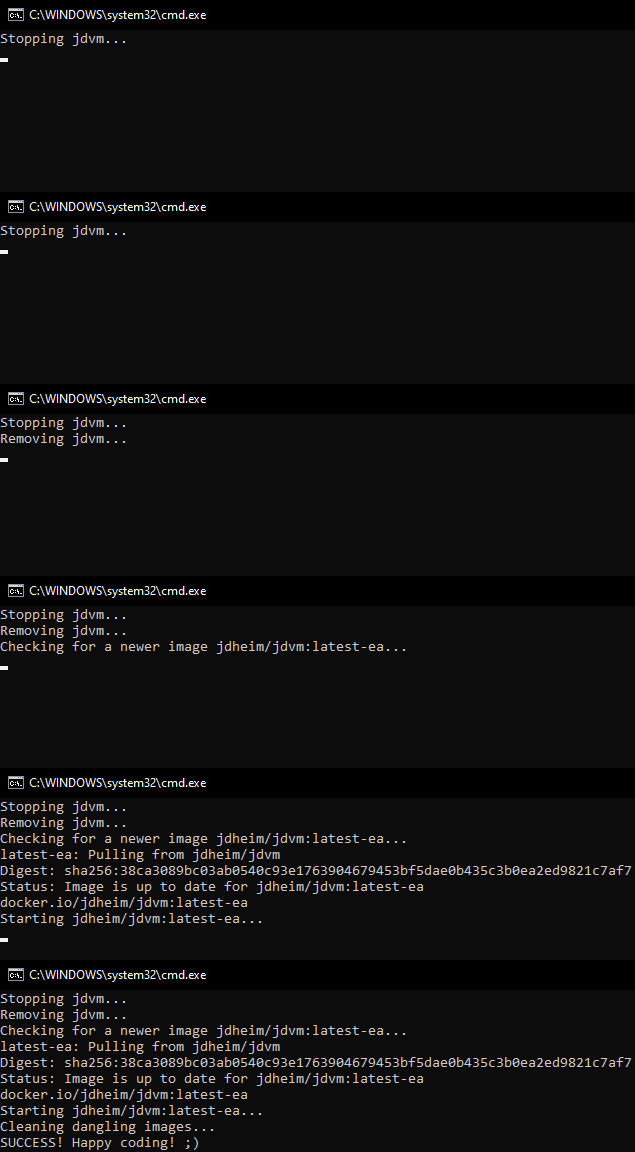
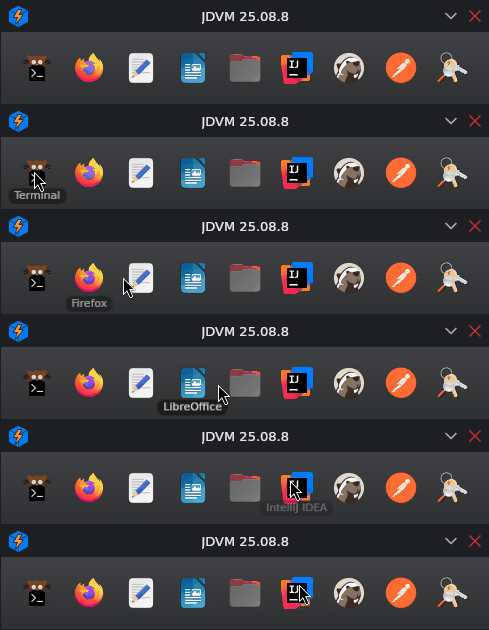
After the container is started, you'll see the dock with the applications having a graphical interface:
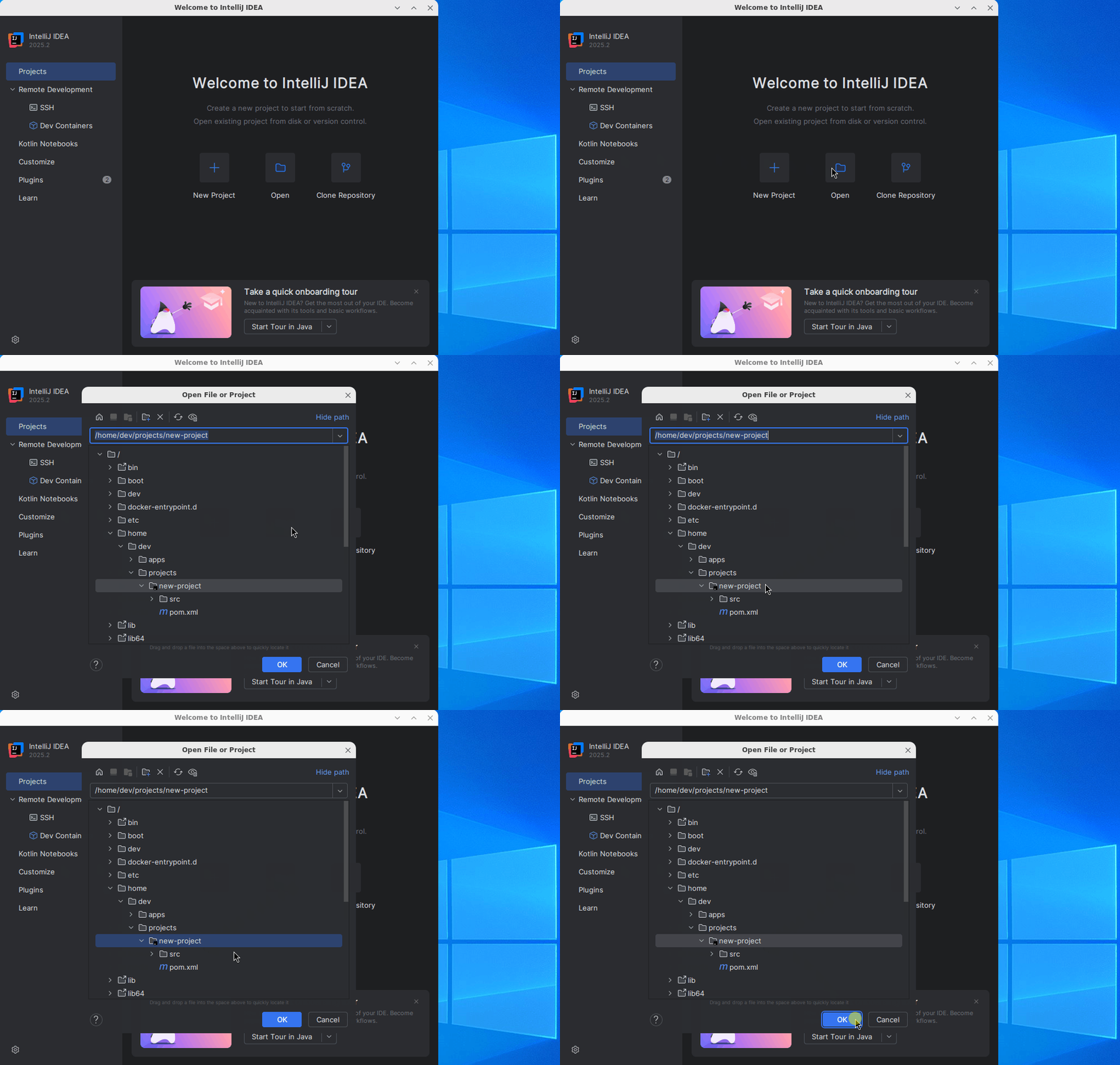
For example, IntelliJ IDEA (not installed by default, you can install it manually):
All applications having graphical interface (even the ones not included in the dock, e.g. engrampa archive manager)
open as a separate window which you can move freely on your Windows / Linux:

🛠️ First Setup and Start
1. Installation
Please follow the linked official documentation and install all required dependencies mentioned above.
2. Setup (in case of Windows)
You can place a .wslconfig file in C:\Users\%USERNAME% where you can configure the amount of memory or the number of
logical processors you want to assign to Docker Desktop.
Warning
You need to restart WSL2 service with command: wsl --shutdown, and then Docker Desktop to see the changes
[wsl2]
memory=10GB
processors=4

[experimental]
autoMemoryReclaim=dropcache
Full documentation: learn.microsoft.com/en-us/windows/wsl/wsl-config#wslconfig
3. Start
- Start Docker Desktop (in case of Windows).
- After that start JDVM container.
- Enjoy!
See an example batch script which starts or restarts JDVM: restart.bat or bash
script: restart.sh. Change the value of IMAGE_VERSION variable if there is a newer
version available.
Batch scripts can be executed on Windows in CMD/PowerShell or with a double mouse click. Bash scripts can be executed on Linux in the terminal.
4. Quit
Windows
Quit Docker Desktop to quit JDVM.
Linux
Run in terminal:
docker container stop jdvm; docker container rm jdvm
💾 Persisting changes
By default, Docker containers do not persist changes. You'll need to use volumes to enable persistence.
In restart.bat/restart-with-wayland.bat/restart.sh I defined 5 volumes:
homeunder/home/dev- home directory of JDVM usercontainerdunder/var/lib/containerd- stores Containerd data, such as images and filesystem snapshotsdockerunder/var/lib/docker- stores Docker Engine data, such as volumes, networks, and container configuration/mnt/shared- a shared place between JDVM andC:\Users\%USERNAME%\sharedon Windows or/home/${USER}/sharedon Linux/mnt/wslga shared socket bindings required to display applications and enable audio output from JDVM on Windows or Linux- On Linux
/tmp/.X11-unixfor display and/run/user/${UID}/pulse/nativefor audio needs to be mounted explicitly instead
- On Linux
Warning
For the best experience, I recommend using X11. Wayland is supported, but still experimental and may be less stable.
🚀 How to add a shortcut to the app launcher Launchee?
You can add a shortcut to the app launcher by editing /home/dev/.config/launchee/launchee.yml file. Here is the example:
# USER CONFIGURATION FILE.
# USE THIS FILE TO OVERRIDE OR EXTEND THE DEFAULT SETTINGS MANAGED BY THE CONTAINER.
# HOW TO ADD NEW SHORTCUTS TO LAUNCHEE? CHECK /etc/launchee/launchee.yml

shortcuts:
  - name: "IntelliJ IDEA"
    icon: "/home/dev/apps/intellij-idea/bin/idea.svg"
    command: "idea"
IntelliJ IDEA, by default, uses X11. If you want to make it use Wayland, set:
    command: "idea"
    commandArgs: "-Dawt.toolkit.name=WLToolkit"
The configuration managed by the container is located in /etc/launchee/launchee.yml.
Warning
Better Documentation is coming soon!
🔄 How to update Docker Desktop/WSL?
Update Docker Desktop
- Go to Docker Desktop settings
- Click on "Software updates"
- Click on "Check for updates"
- Install updates
Update WSL
- Quit Docker Desktop
- Open PowerShell
- Check version:
wsl --version - Close WSL:
wsl --shutdown - Update WSL:
wsl --update- Optionally, you can update WSL to a pre-release version (less stable):
wsl --update --pre-release
- Optionally, you can update WSL to a pre-release version (less stable):
🐛 Known Issues
Wayland: App icons do not load (all show the Tux icon)
If you use restart-with-wayland.bat, you may notice that all applications using wayland display the Tux icon instead of their proper icons.
The fix is to:
Warning
The workaround below seems to have stopped working since Docker Desktop 4.46
- Download this repository as a ZIP (
Code->Download ZIP) - Unpack the contents of the wayland-icon-fix folder to
\\wsl$\docker-desktop\usr\shareusing Windows Explorer:- wayland-icon-fix/applications having
*.desktopfiles go to\\wsl$\docker-desktop\usr\share\applications - wayland-icon-fix/icons/apps having
*.pngicons go to\\wsl$\docker-desktop\usr\share\icons\apps
- wayland-icon-fix/applications having
- Restart Docker Desktop to see the changes
If you install your own application, you'll need to create a matching *.desktop file:
- In a terminal run
tail "/mnt/wslg/weston.log" -f | grep "appId:" - Launch your application and check the
appIdshown. - The
*.desktopfile created inapplicationsdirectory must have the exact same filename as theappId. - The
StartupWMClassfield inside the*.desktopfile must also match theappId. - Place your application's icon into the
icons/appsdirectory - Restart Docker Desktop to see the changes
Minimal jetbrains-idea.desktop file example:
[Desktop Entry]
Name=IntelliJ IDEA
Exec=idea
Type=Application
Icon=/usr/share/icons/apps/jetbrains-idea.png
StartupWMClass=jetbrains-idea
Warning
After a Docker Desktop update, the above changes need to be reapplied, so make sure to back up these files. Starting with Docker Desktop 4.46, the changes no longer seem to persist between restarts.
Wayland: App GUI freezes after Windows sleep/resume
After resuming Windows from sleep, GUI applications may appear frozen. To fix this, right-click the application in the taskbar and select Close.
Launchee will automatically restart after a few seconds.
This issue is specific to GTK on Wayland (it does not occur on X11). For more details, see: KWin Wiki: Restarting
VHDX disk grows over time
This issue has been resolved in Docker Desktop 4.34 with the compaction feature, but disabled after 4.59.
Deleting data in Docker Desktop (e.g. images, volumes) does not cause the size of VHDX (Virtual Hard Disk) to decrease. Once the VHDX grows it will remain that size, or grow larger as the amount of data increases.
You can check the size of your Docker Desktop VHDX file under path: %LOCALAPPDATA%\Docker\wsl\disk (%LOCALAPPDATA%
is Windows environment variable which resolves to C:\Users\%USERNAME%\AppData\Local).
If you want to recover some of the disk space on Windows that is being consumed by the VHDX, you can shrink the VHDX.
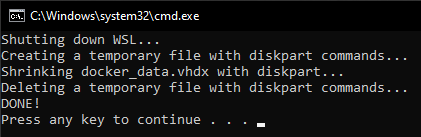
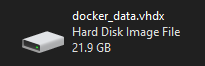
See example batch script which automates the shrinking of VHDX
via diskpart Windows
utility: shrink-vhdx.bat. Change the value of vhdxFile and vhdxPath variables
if the name/path of your VHDX is different.
Warning
Shut down Docker Desktop before running the script!

Example
Before:
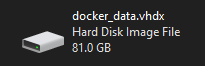
Shrinking:
After:
Firefox can crash if shared memory size is too low
To prevent crashes from happening when running Firefox inside JDVM, the size of the shared memory located at
/dev/shm must be increased. The issue is documented here.
By default, the size in Docker containers is 64MB, which is not enough. It is recommended to use a size of 2GB.
This value is arbitrary, but known to work well. Setting the size of /dev/shm can be done by adding the
--shm-size 2g parameter to the docker run command. It is already added
to restart.bat/restart.sh.
Missing overlayfs Storage Driver
To check the Storage Driver inside JDVM run command: docker system info --format "{{.Driver}}". If it is not
overlayfs, it means you're missing --mount source=containerd,target=/var/lib/containerd and --mount source=docker,target=/var/lib/docker parameters in docker run
command. It is already added to restart.bat/restart.sh.
Thanks to this, Docker can use overlayfs as a Storage Driver, otherwise it falls back to vfs. Using vfs may cause
issues when creating a k3s kubernetes cluster with k3d.
📜 Useful Scripts
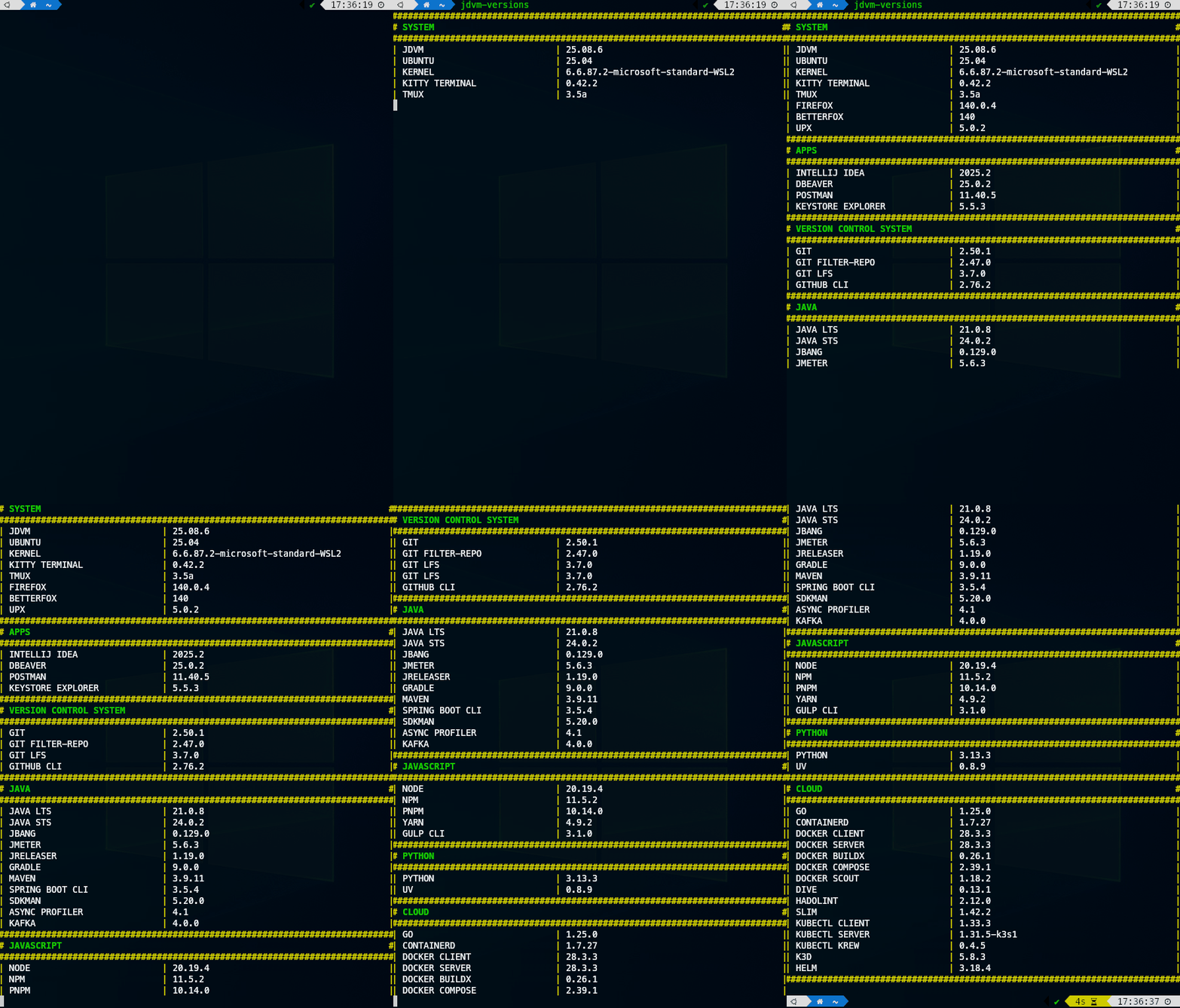
On JDVM there are some useful scripts which you can use (more coming soon!).
📚 Useful Docs
- Accessing application in a Windows browser
- Certificate Setup
- Verifying Provenance and SBOM Attestations
🏗️ How to build image locally?
Clone or download as a ZIP this repository.
Install the latest JDK on Windows / Linux: adoptium.net/temurin/releases
Windows: Use Maven wrapper: mvnw.cmd and type in CMD/PowerShell:
.\mvnw.cmd clean install -Pbuild-image
Linux: Use Maven wrapper: mvnw and type in Terminal:
./mvnw clean install -Pbuild-image
If you want to remove builder cache after the image is built, use -Pbuild-image,remove-buildx-cache Maven profiles or
open Docker Desktop, go to Volumes tab and remove buildx_buildkit_jdvm-builder0_state volume manually. You can also
execute command:
docker volume rm "buildx_buildkit_jdvm-builder0_state"
Older releases are removed from DockerHub. If you want to use an older release for whatever reason, you need to build it yourself. In the Releases tab you can find zip with the source code.